Share a Screenshot of Your Order and Earn Points: Every 10 Published Pictures Are Worth $1–$4
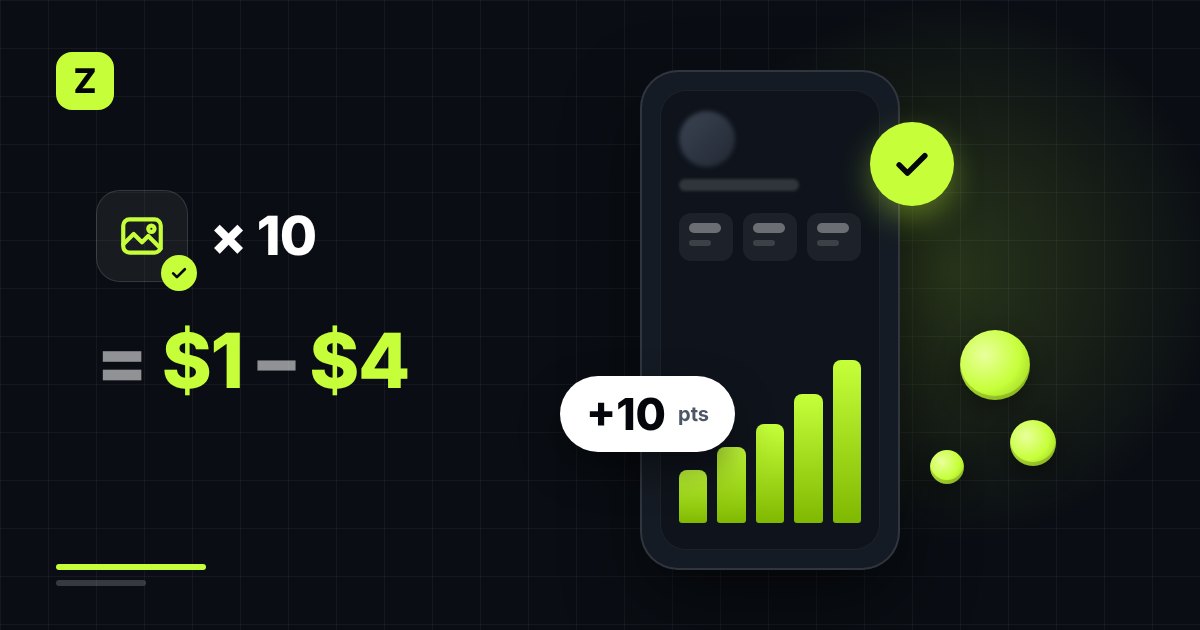
You can now share a screenshot of any completed order on Zyadat and get 10 loyalty points as a thank-you once we publish it. Your screenshot shows with that service’s samples, so other customers see what the service really delivered before they order, and your name never appears.
How much your pictures are worth
Each published screenshot gives 10 points, so every 10 published pictures give 100 points. What 100 points are worth depends on your account level, which follows your total spend on Zyadat:
| Level | Starts at (total spend) | 10 published pictures (100 points) |
|---|---|---|
| New, Junior, Regular | Under $50, $50, $100 | $1 |
| Elite, VIP | $1,000, $2,500 | $2 |
| Master | $10,000 | $3 |
| Diamond | $50,000 | $4 |
The gift comes once for each screenshot and doesn’t depend on how the result looks: a real result that is small or slow is published like any other.
How to share a screenshot
- Open Orders in your account.
- On a completed order, press Share a screenshot.
- Choose the screenshot: PNG, JPG or WebP, up to 10 MB.
- Before you send it, cover or crop your username and other people’s names, photos and faces.
- Tick that it may be shown to other customers without your name, then press Send the screenshot.
We check every screenshot. Once it’s published, the points go to your account by themselves, and the order shows “+10 points gift”.
What we publish
- A clear, genuine screenshot that shows this order’s result.
- Nothing private: if we spot a name, a photo or a face, we blur it before publishing.
- Not published: an edited picture, an unclear one, or one that doesn’t show the order. You can then send another one for the same order.
Each order takes one screenshot, and up to 3 of yours can wait for review at the same time.
Where your screenshot shows
Under the service on the New order page and in the service’s details on the Services page, under “Screenshots from customers”.
Turning points into balance
Your points and level show on your dashboard. From 100 points, the Turn my points into balance button appears there, and the balance goes into your next orders.
Reviews count too
A review you write for an order also gives 10 points once it’s published, whatever its stars.